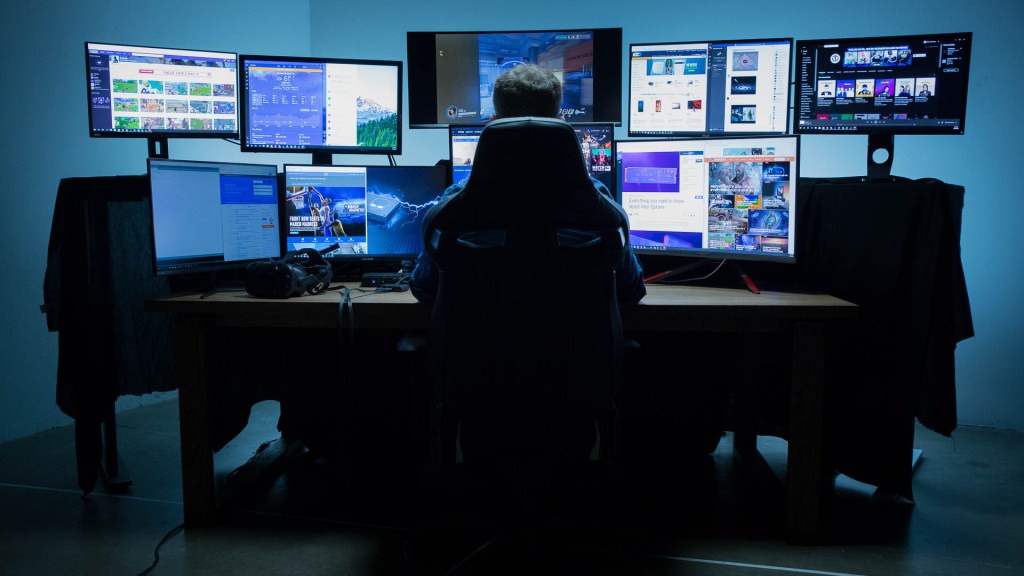
Hey there! Today I’m going to show you how to use multiple monitors on Windows 11. As a content creator, multiple monitors have been a game-changer for me, and I’m sure it will be for you too. So let’s get started!
CLICK HERE FOR A SPECIAL OFFER FROM OUR SPONSORS
Step 1: Check Your Graphics Card
Before setting up multiple monitors, make sure your graphics card supports it. You can do this by going to the Device Manager and checking your graphics card specifications. If your graphics card supports multiple monitors, you’re good to go.
Step 2: Connect Your Monitors
Next, connect your monitors to your computer. You can do this by using HDMI, DisplayPort, or USB-C cables. Make sure your graphics card has enough ports for your monitors. Once you’ve connected your monitors, turn them on.
Step 3: Adjust Display Settings
Now, it’s time to adjust your display settings. Right-click on your desktop and select Display settings. Here, you can choose which monitor you want to be the main display, adjust the screen resolution, and choose the orientation of your monitors.
Step 4: Customize Your Desktop
With multiple monitors, you have more desktop space to work with. You can customize your desktop by dragging and dropping windows and applications across your monitors. You can also set up different wallpapers for each monitor.
Step 5: Use Keyboard Shortcuts
Keyboard shortcuts are a great way to navigate between your monitors quickly. Press Win + P to switch between different display modes such as Duplicate, Extend, and Second screen only. You can also use Win + Left/Right arrow keys to move windows between monitors.
And there you have it! With these simple steps, you can set up multiple monitors on Windows 11 and boost your productivity. Now you can have multiple applications and windows open side by side without cluttering your desktop. Thanks for reading, and I’ll see you in the next one!
 CheckYourTech
Leave a comment